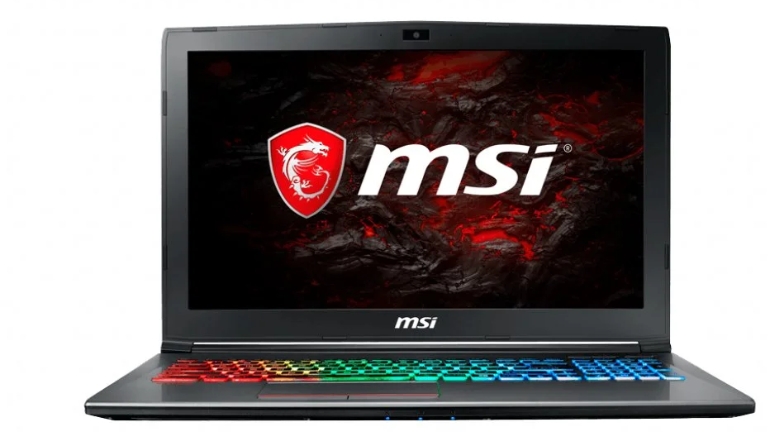
MSI laptops are popular among gamers for their high-performance gaming capabilities. However, high-performance gaming laptops can generate a lot of heat, and if the fan speed is not managed properly, it can cause problems.
In this article, we will discuss how to manually control the fan speed on your MSI laptop.
Why Should You Control Fan Speed?
Before we dive into the steps for manually controlling the fan speed on your MSI laptop, let’s discuss why it’s important to do so.
Cooling Efficiency: The primary purpose of a fan is to keep your laptop cool by dissipating the heat generated by the components. If the fan speed is too low, your laptop will not cool down efficiently, which can lead to overheating and damage to your components.
Noise: A fan running at full speed can be quite loud and distracting, especially while gaming or doing other tasks. By controlling the fan speed, you can reduce the noise level of your laptop.
Battery Life: Running the fan at full speed all the time can drain your laptop’s battery quickly. By controlling the fan speed, you can extend your laptop’s battery life.
How to Manually Control Your MSI Laptop Fan Speed
Here are the steps to manually control the fan speed on your MSI laptop:
Step 1: Download and Install MSI Afterburner
MSI Afterburner is a free software tool that enables you to monitor and adjust the fan speed of your MSI laptop. It can be downloaded from the MSI website.
Step 2: Open MSI Afterburner
After installing MSI Afterburner, open the software to access its interface. The software will display a window with various options and settings.
Step 3: Adjust Fan Speed
To manually adjust the fan speed of your MSI laptop, you can follow these steps:
Manual Fan Speed Control
If you want to manually control the fan speed, you can select the “User Define” option on the “Fan” tab. This will enable you to adjust the fan speed by sliding the bar to the left or right.
When you slide the bar to the left, the fan speed will decrease, while sliding it to the right will increase the fan speed.
Automatic Fan Speed Control
If you prefer to have the software adjust the fan speed automatically based on the temperature of your components, select the “Auto” option.
MSI Afterburner will use a temperature curve to determine the appropriate fan speed.
You can also adjust the temperature curve by clicking on the “Curve” button. This will allow you to customize the fan speed at different temperature levels.
Step 4: Test Your Fan Speed
After adjusting the fan speed on your MSI laptop, it’s crucial to test it to ensure that it’s functioning correctly. To do this, you can run a benchmark or play a game that puts your components under a heavy load.
While doing so, monitor your laptop’s temperature and fan speed to ensure that it’s cooling efficiently and not overheating.
If you notice that your laptop is still running hot, you may need to adjust the fan speed again or seek professional help to diagnose any underlying issues.
Conclusion
Being able to control the fan speed on your MSI laptop is crucial for efficient cooling, noise reduction, and extending battery life. By following the steps outlined above, you can manually control your fan speed using MSI Afterburner. Remember to test your fan speed to ensure it’s working correctly.