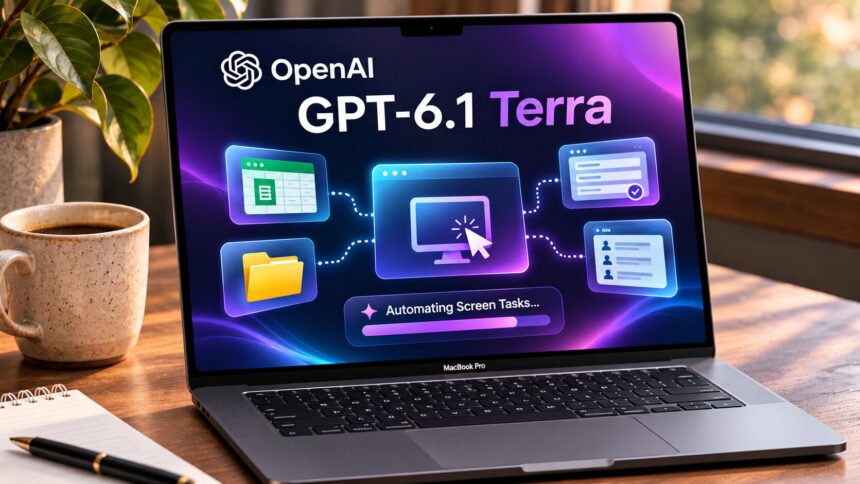
Handing an AI model control of your mouse and keyboard raises a fair question: how do you use GPT-6.1 Terra safely? OpenAI released GPT-6.1 Terra on October 26, 2026, as a fast model for visual reasoning, writing and computer use, which means it can act inside apps and folders you open to it. This guide focuses on the permissions, approvals and testing habits that keep that power from becoming a privacy or accuracy problem.
How do you use GPT-6.1 Terra safely?
To use GPT-6.1 Terra safely, give it access only to the folder or app a task needs, work with copies of files, keep passwords and financial or customer data out of view, require your approval before it sends, submits, deletes or buys anything, and test on five to ten records before running a full batch.
Why GPT-6.1 Terra needs guardrails
Terra is part of OpenAI’s GPT-6 series. When paired with supported computer-use tools in ChatGPT Work or Codex, it can interpret the screen, navigate menus, enter text and operate application controls. That is useful for routine admin work, but it also means the model sees and touches whatever its tools can reach.
The risk is not only about privacy. An AI that types into a live customer relationship management (CRM) system or submits a form can create real-world consequences if it misreads a field. Good security practice treats Terra like a new team member with a narrowly defined role. Our article on how dealerships can govern AI use in the service drive applies the same governance thinking to a real business setting.
Step 1: Limit the workspace
Start by deciding exactly what Terra needs. If the task is organizing invoices, place copies in a dedicated folder and point Terra there. Do not open an entire drive full of unrelated documents.
Follow each permission prompt carefully and grant access only to relevant folders or apps. Organization accounts may already have administrator limits on which models and features are available, and OpenAI’s Work and Codex help article explains how access to local files is managed.
Step 2: Protect sensitive information
Keep passwords, financial records and customer data away from Terra unless the task truly requires them. Remember a key limitation: a restricted workspace reduces risk but does not guarantee that private information will never appear on screen. Close unrelated windows and tabs before you start.
If you use web apps through the ChatGPT desktop app, review how sign-ins and browser permissions work in OpenAI’s guide to the built-in browser. For a broader look at handling personal and customer records, see our piece on managing data privacy risks.
Extra controls for Codex users
Developers working in Codex should review its sandbox and approval settings before granting broader access to files, commands or network resources. Tighter settings mean more prompts, but they also mean fewer surprises.
Step 3: Require approval for high-impact actions
Decide in advance which actions always need a human. The source article lists sending emails, making payments, changing account settings and submitting information to external systems. Put that rule directly into your instruction. The source suggests this wording:
“Complete the preparation steps, but do not send messages, submit forms, delete original files, or make purchases without my approval.”
This one line turns Terra from an autonomous actor into a preparer. It drafts, fills and organizes; you press the final button.
Step 4: Tell Terra what to do when it is unsure
Many errors start when a model fills a gap with a guess. Each instruction should say how to handle missing or unclear data. For CRM entry, the source’s example tells Terra to skip records missing required fields and list what is missing. For online forms, it says: “Do not guess missing information, and stop before final submission.”
Step 5: Test small, then scale
Accuracy is a security issue too, because bad data spreads. If you have 500 records, begin with five or ten. Check every result, fix recurring mistakes in your instructions, and only then increase volume. Doing a task correctly once is very different from doing it correctly hundreds of times.
Known failure points to watch
According to the source article, Terra may struggle when:
- A site or app changes its layout.
- A document is blurry, incomplete or ambiguous.
- An application asks for additional authentication.
- A task calls for sensitive financial or legal decisions.
- The information it needs sits outside the permitted workspace.
Any of these should trigger a pause and human review, not a retry loop.
Is the API a safer route for recurring work?
For recurring processes, a direct integration or API-based automation may be more dependable than screen interaction. Terra is available through the OpenAI API at standard prices of $1 per million input tokens and $5 per million output tokens, according to OpenAI’s GPT-6.1 Terra model page. API billing is separate from ChatGPT subscriptions. If you are setting that up, our walkthrough on how to get an OpenAI API key covers the first step.
Safety checklist at a glance
| Control | What to do |
|---|---|
| Workspace | Dedicated folder with copies of files only |
| Sensitive data | Keep passwords, financial and customer data out of view |
| Approvals | Human sign-off for emails, payments, account changes and external submissions |
| Uncertainty | Instruct Terra to skip, flag or stop instead of guessing |
| Testing | Five to ten records before any large batch |
Key takeaways
- GPT-6.1 Terra can act inside apps and folders, so access should be as narrow as the task allows.
- A restricted workspace lowers risk but cannot guarantee private data stays off screen.
- Write an explicit approval rule into every instruction for sends, submits, deletes and purchases.
- Tell Terra how to handle unclear data so it never guesses.
- Pilot with a handful of records and review results before scaling.
Frequently asked questions
Can GPT-6.1 Terra access all of my private files?
No. Terra can work only with the files and applications made available through the tools and permissions in your setup. Review each permission request, use a dedicated folder of copies, and avoid exposing unrelated information. Restricting the workspace lowers risk, but it does not guarantee sensitive details never appear on screen.
Should I let GPT-6.1 Terra submit forms or send emails?
Not without approval. The source guide recommends requiring your sign-off before Terra sends emails, makes payments, changes account settings or submits information to external systems. Let it complete the preparation, then review the filled form or drafted message yourself before you confirm the final action manually.
Is GPT-6.1 Terra safe for financial or legal tasks?
Use caution. The source article lists sensitive financial or legal decisions among the situations where Terra may struggle. It can help organize invoices or extract details, but amounts, dates and any decision with legal or financial consequences should be checked by a person before the output is used.
How do Codex sandbox settings help with safety?
Codex users can review sandbox and approval settings before granting broader access to files, commands or network resources. Tighter settings require more confirmations from you, but they reduce the chance that the model touches something outside the intended task or runs an action you did not expect.