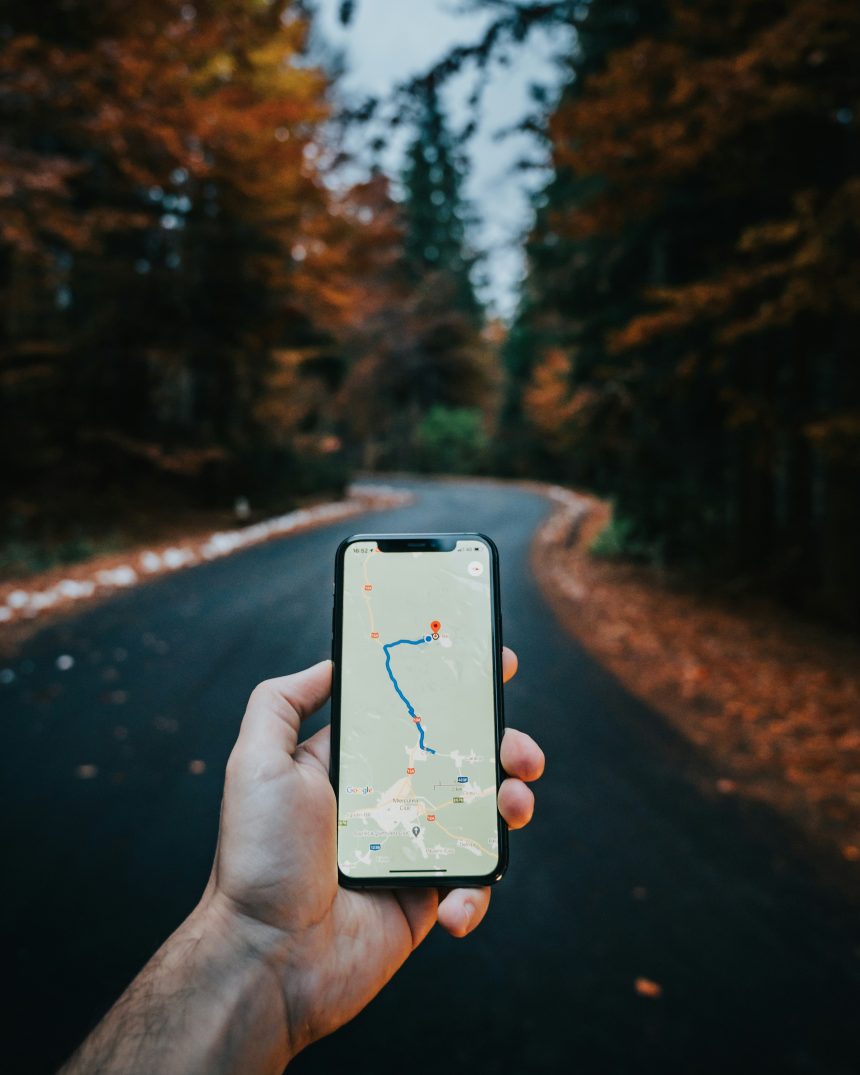
Google Maps has become an indispensable tool for navigating the modern world. However, there are times when the suggested routes may not align with your preferences or requirements. Whether you want to avoid tolls, take a scenic route, or simply have a preferred path, there are ways to influence Google Maps to take a certain route. In this guide, we’ll explore various methods to force Google Maps to navigate according to your preferences.
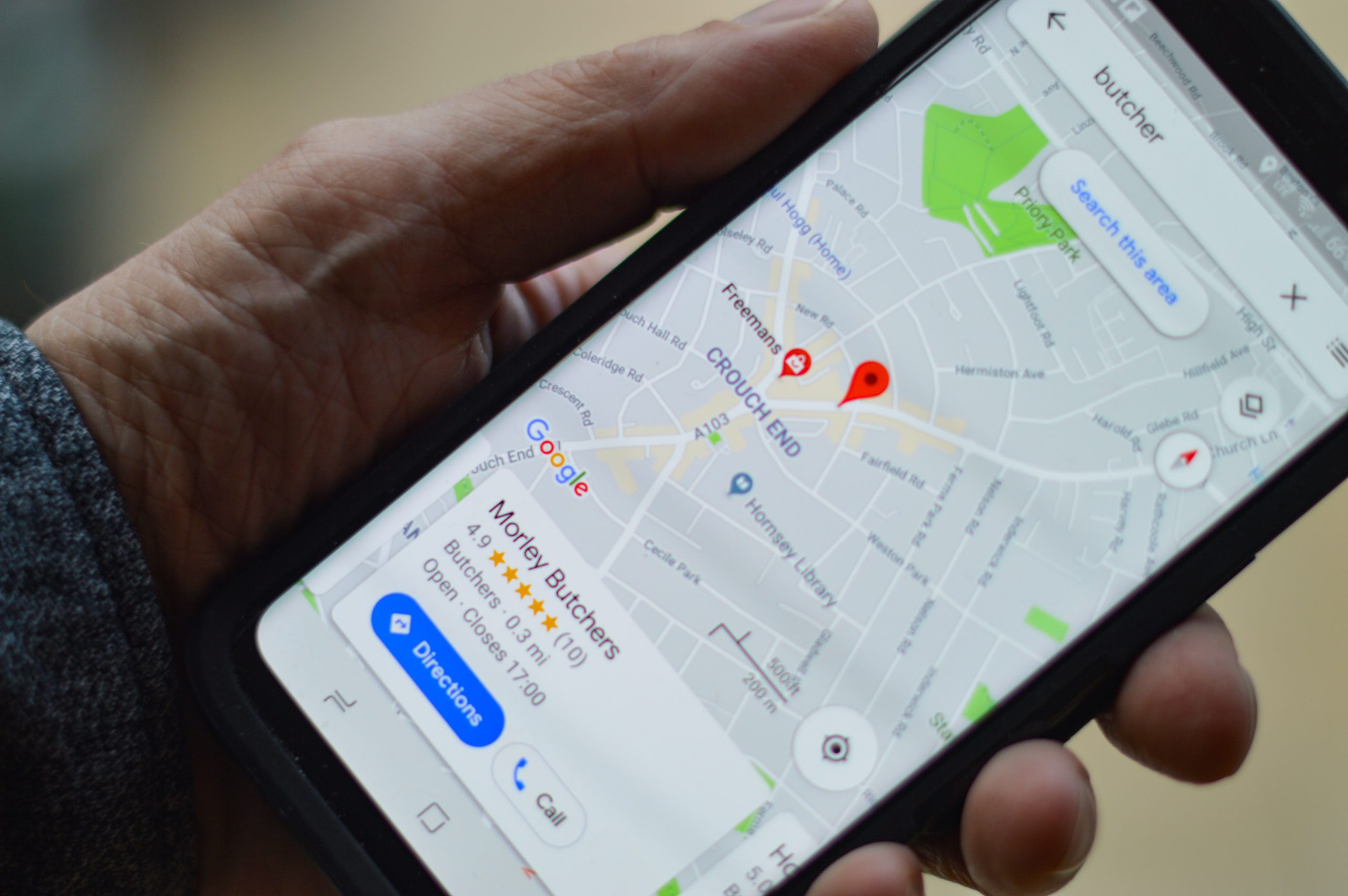
1. Setting Route Preferences
Google Maps provides users with the flexibility to customize their route preferences. Before you start navigating, you can set preferences such as avoiding tolls, highways, or ferries. To do this:
– Open Google Maps on your device.
– Enter your destination.
– Tap on “Directions.”
– Click on the three horizontal dots in the upper right corner.
– Select “Route options.”
– Adjust your preferences, such as avoiding tolls or highways.
By customizing these settings, Google Maps will consider your preferences when providing directions.
2. Dragging and Dropping Waypoints
Another method to force Google Maps to take a specific route is by manually adjusting waypoints. You can drag and drop the route to include or exclude specific roads. Here’s how:
– After entering your destination, click on the suggested route to reveal more details.
– Drag the route to include or exclude specific roads or areas.
– Google Maps will automatically recalculate the route based on your adjustments.
This method allows for a more hands-on approach to shaping your journey according to your preferences.
3. Adding Multiple Destinations
Google Maps allows you to add multiple destinations, enabling you to create a multi-stop route. By strategically adding waypoints, you can guide the navigation along your preferred roads. Follow these steps:
– Enter your starting point and destination.
– Click on the “+” button to add another destination.
– Continue adding destinations in the order you prefer.
– Google Maps will generate a route that includes all your specified stops.
While this method may not guarantee the exact route you have in mind, it provides a way to influence the overall direction.
4. Using Offline Maps
If you want complete control over your route, especially in areas with limited connectivity, consider using offline maps. By downloading maps for a specific region, you can navigate without relying on real-time data. Here’s how to use offline maps:
– Search for the area you want to download.
– Tap on the location’s name or address.
– Click on “Download.”
– Once downloaded, open Google Maps, and your offline map will be available.
With offline maps, you can choose your route without the influence of real-time navigation suggestions.
5. Third-Party Navigation Apps
If you find Google Maps limitations frustrating, consider exploring third-party navigation apps that offer more advanced route customization features. Apps like Waze, MapQuest, or HERE WeGo provide additional options for shaping your route according to your preferences.
6. Feedback and Corrections
Google Maps allows users to provide feedback on routes. If you consistently encounter issues with the suggested routes, use the “Send Feedback” option to inform Google about your preferred route. While this won’t immediately change the directions, it contributes to improving the overall accuracy of Google Maps.
Mastering Google Maps to force a specific route requires a combination of utilizing built-in features and adopting creative strategies. Whether it’s adjusting route preferences, manually dragging waypoints, or exploring offline maps, users can navigate the world on their own terms. While Google Maps strives to provide the best routes based on real-time data, understanding these methods empowers users to take control of their journeys and navigate according to their unique preferences and requirements.