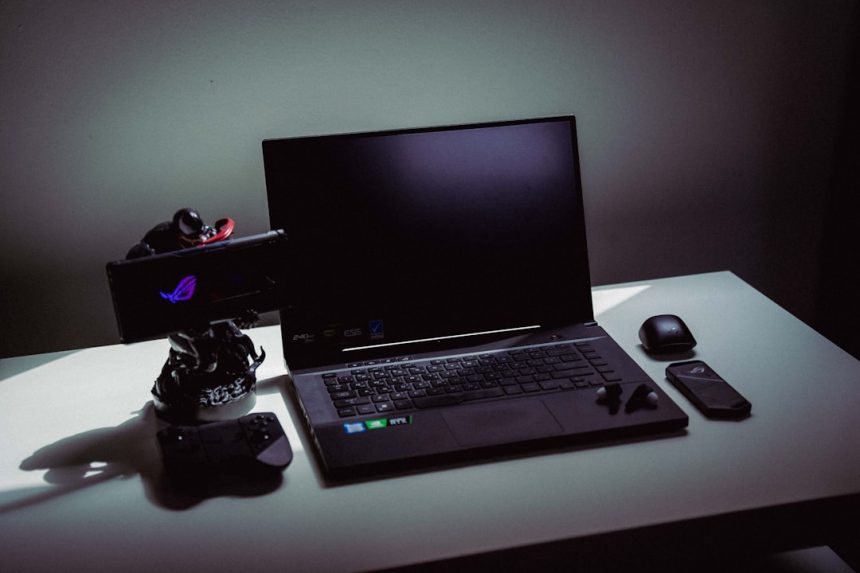
Are your games stuttering? Laptop getting too hot? Don’t worry. Gaming on laptops in 2025 can be buttery-smooth with just a few tweaks. You don’t need to be a tech wizard. Just follow these fun and simple tips to transform your laptop into a lean, mean, pixel-pushing machine!
1. Game Mode & GPU Settings Are Your Best Friends
Windows 11 (and yep, most laptops now use it) comes with a built-in Game Mode. It focuses your computer’s energy where it belongs—on your game.
- Hit Start, type “Game Mode“, and turn it on.
- Open your GPU control panel (usually NVIDIA or AMD).
- Set your laptop to High Performance mode for games.
This ensures your laptop uses the dedicated graphics card and not that weak built-in one!
[ai-img]gaming laptop, rgb keyboard, game mode[/ai-img]
2. Cool It Down!
Laptops get hot—like lava-hot. That heat can slow down your performance big time. Here’s how to chill it out:
- Use a cooling pad. These are cheap and fun to use.
- Keep your fans clean. Dust is the enemy of performance.
- Play in a cool room. Seriously, it helps.
Also, check your laptop’s fan settings in the BIOS or use software that lets you boost the fan speed while gaming.
3. Update Everything. Yes, Everything!
This is boring, but it’s key. An outdated driver can mess up your frame rates, cause crashes, or just make your life difficult.
- Update your graphics drivers—AMD, NVIDIA, or Intel.
- Install Windows Updates (they often include performance fixes).
- Keep your game and game launchers like Steam or Epic up to date.
Bonus: Turn on auto-updates wherever possible so you can spend your time gaming, not updating.
4. Kill Those Background Apps
Nothing ruins a good gaming session like a sudden lag spike. You know why it happens?
Too many apps sucking up your RAM and CPU in the background. Follow these quick steps:
- Open Task Manager (Ctrl + Shift + Esc).
- Look for apps eating CPU or Memory.
- Right-click and hit End Task for anything not essential.
Also, ditch the bloatware that came with your laptop. Those auto-launching programs love to ruin frame rates.
[ai-img]task manager, laptop screen, performance boost[/ai-img]
5. Tweak In-Game Settings Smartly
You don’t need ultra settings to have a blast. In fact, smart tweaks can double your FPS. Here’s what to adjust:
- Turn down shadows. Big FPS boost, almost no visual difference.
- Lower resolution scaling if things get choppy.
- Disable motion blur and anti-aliasing for speed.
Many 2025 games also have a “Performance Mode”. Use it! It auto-tunes visuals for the best frame rates on laptops.
Bonus Round: Good Habits = Great Gaming
Here are some extra fun tips that go a long way:
- Plug in your charger while gaming. Battery = slower performance.
- Use Ethernet or fast Wi-Fi 6 for online games. Lag is the enemy!
- Reboot your laptop before long gaming sessions. It clears out memory and refreshes performance.
Final Words
Your laptop is more powerful than you think. Just needs a little love! By following these tips, you’ll enjoy faster load times, smoother gameplay, and an overall better experience in 2025’s cutting-edge games.
Remember: cool, clean, and updated—that’s the laptop gamer’s motto. Now go fire up that game, turn the settings up (smartly), and enjoy a lag-free session!